

You’ve built what looks like the perfect ICP: industry, employee count, location, job titles. You export the list, load it into your sending tool, and the replies look a lot like last month’s. Maybe that’s because your competitors just typed the same filters into the same databases.
Sound familiar?
Good news: you can build unlimited lead lists with GetLeads that don’t look like everyone else’s. Describe your ICP in plain English inside Grok Bot, Claude, or ChatGPT, then add a hidden filter most people never think to use. (Want the product and pricing walkthrough first? Here’s our GetLeads review.)
Quick disclosure: the GetLeads founder is a personal friend, and the GetLeads link in this post is an affiliate link (we may earn a commission). Some other links are paid too. Let’s dive in.
👇 Our CEO walks through the whole setup, prompts included, in this video:
How Unlimited Lead Lists Work in GetLeads
GetLeads is built around unlimited credits, so you can pull a list, look at it, tighten the prompt and pull again, without treating every export like a rationed resource.
Most lead tools train you to shrink the search, because every row costs a credit. Unlimited credits flip that. You can start with a small batch (the first prompt below asks for 50), check whether the companies and titles look right, then go back and refine.
For plans and pricing, see our GetLeads review. This walkthrough is about what you can do once you’re not counting every row.
How to Connect GetLeads to Your AI Assistant
You don’t click through a filter dashboard. You connect GetLeads to your AI tool and ask for the list in plain English.
GetLeads’ official MCP setup guide covers Claude, ChatGPT and other MCP clients. The MCP server URL in that guide is:
https://app.getleads.io/api/mcp
Here’s how to connect it in each of the three tools.
Connect GetLeads to Claude
These are the steps on GetLeads’ Claude setup (the Claude tab of their MCP guide):
- Open claude.ai/customize — or in the Claude Desktop app, click Customize.
- Click Connectors.
- Click + Add custom connector.
- Name it getleads and paste
https://app.getleads.io/api/mcpas the Remote MCP server URL. - Press Connect and sign in.
- Log in to GetLeads and click Allow — then just ask Claude to find leads.
Their guide also has a shortcut that opens Claude with GetLeads already filled in: press Add, then Connect, and sign in to GetLeads. After that, it works in Claude on web, desktop and mobile.
Connect GetLeads to ChatGPT
The same GetLeads MCP guide has a ChatGPT tab. Their steps are:
- Open chatgpt.com/plugins in a web browser (the ChatGPT apps can’t add custom servers).
- Click Add, then Add custom MCP server.
- Name it GetLeads and paste
https://app.getleads.io/api/mcpas the Server URL. - Leave Authentication on OAuth, tick I understand and want to continue and press Create as a plugin.
- Press Continue to GetLeads, log in and click Allow.
- Start a new chat, type @GetLeads and ask it to find leads. ChatGPT asks before each GetLeads call, and Always allow stops the prompts.
GetLeads notes that this doesn’t need Developer mode, and that it works on the Free plan. On a Business workspace, only admins and owners can add it; on Enterprise and Edu, an admin has to grant access first.
Connect GetLeads to Grok Bot
Ask Grok Bot to connect GetLeads. It shows a connect card, and you sign in to your GetLeads account. Once that’s done, you can describe your ICP in the same conversation.
Describe Your ICP in Plain English
Talk to it the way you’d brief a teammate, not the way you’d fill out a form.
The first prompt is a complete brief: who is asking (DFY Meetings, a B2B lead generation agency), the companies wanted (B2B SaaS, 5-50 employees, based in Austin, Texas), the titles (founder, co-founder, owner, CEO, head of sales, head of demand gen, chief revenue officer, and similar), the contact fields, and a starting count of 50 leads. It also asks for any contact with an email, valid or catch-all, which matters later when we get to verification.
Copy the prompt below, swap in your own company, ICP and titles, and run it once GetLeads is connected.
Prompt 1: Build the ICP list
💡 Pro tip: Start small, the way this prompt does, with 50 leads. Check the companies, titles and emails before you ask for a bigger pull.
What’s on a GetLeads List (and How to Make It Send-Ready)
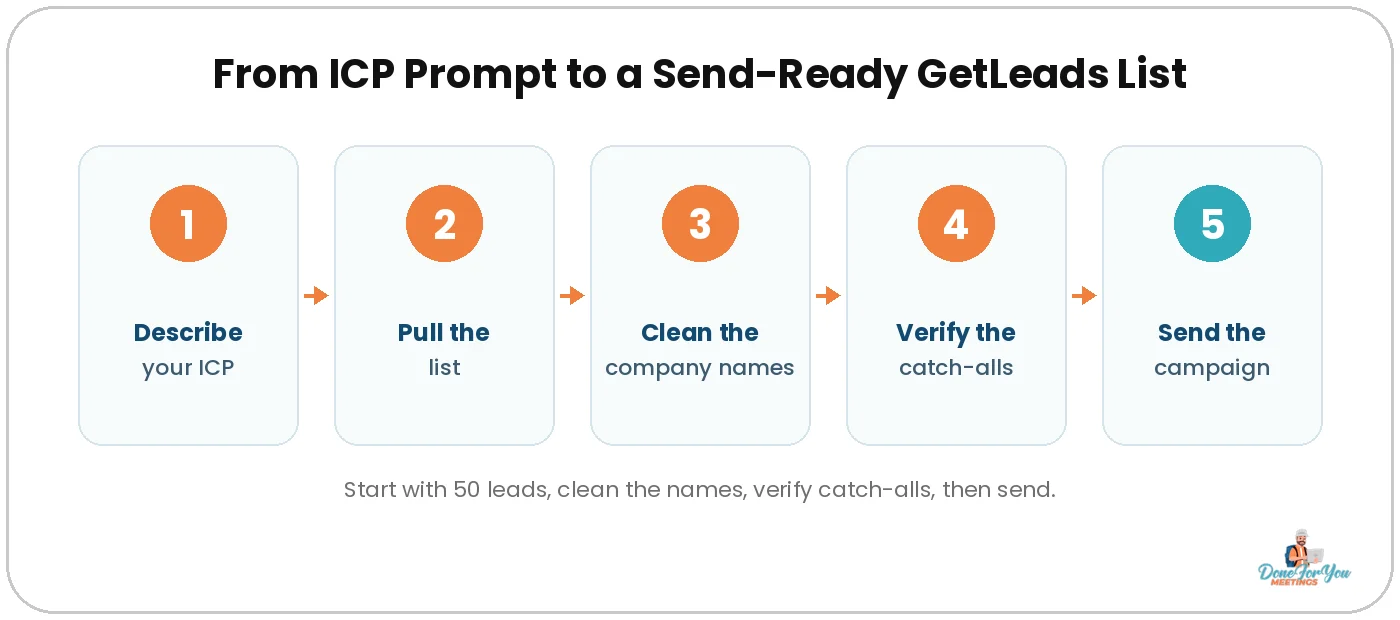
Ask for the fields you’ll actually use, clean the company names, and verify catch-alls before a single email goes out.
The fields to ask for
In the prompt above, the brief asks for an email (valid or catch-all), and, when possible, the company LinkedIn, the contact’s LinkedIn, a phone number and an address. Ask for the fields your campaign will actually use.
Clean the company names for cold email
Legal suffixes and ALL CAPS company names are a giveaway. Nobody wants an email that opens with “I was looking at Acme Solutions LLC, Inc.” A clean company name is the cheapest cold email personalization you’ll ever add.
This prompt creates a new “Clean Company Name” column and leaves the original data and row order alone.
Prompt 2: Clean company names for personalization
Verify catch-all emails
The ICP prompt asks for valid emails and catch-alls. Catch-alls can receive mail, or they can bounce, and you won’t know until you check. Before the list goes into a campaign, run it through a verifier. We like MillionVerifier for this. If you want the full process, here’s how to stop bounces with email validation.
💡 Pro tip: Verify right before you launch, not a week earlier. Lists go stale, and a fresh pass is what protects your sending domain.
Why Your Competitors Have the Same List
If you and your competitors all search “SaaS, 10-50 employees, California, CEO,” you’re emailing the same people.
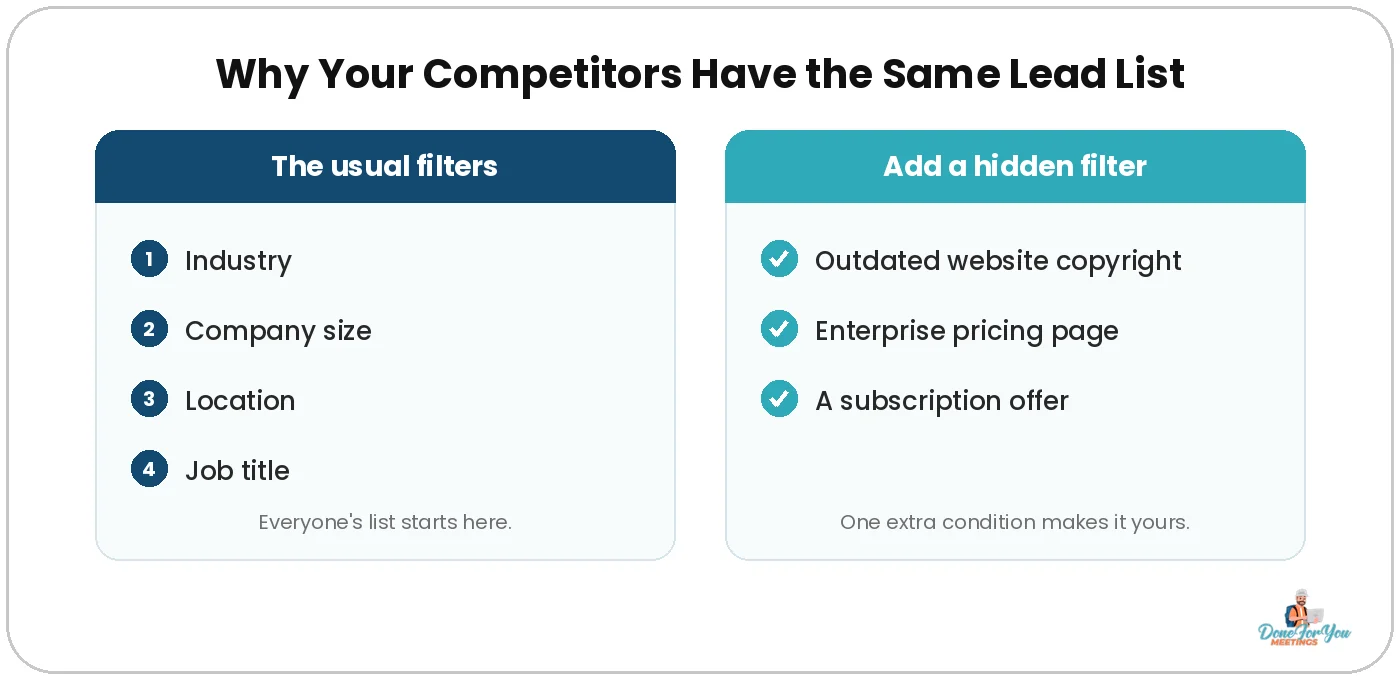
That’s the quiet problem with most lead databases. The filters everyone uses (industry, headcount, location, job title) produce the same lists. Your “unique” ICP is only unique until the next agency types it in.
The way out is a filter that isn’t sitting in a standard dropdown: something about the company’s website or its offer. The next three prompts still use a normal ICP, then add one extra condition.
Three Hidden Filters for Lists Nobody Else Has
Add one condition that has to be true on the company’s website or in its offer, and your list stops looking like everyone else’s.
These are the three examples from the walkthrough. Use them as-is to see how the pattern works, then swap the ICP and the filter for whatever you sell.
1. Companies with an outdated website copyright
This one looks for manufacturing companies in the USA (5-500 employees; owners, CEOs and CMOs) whose website copyright is at least a year behind. If you sell websites, marketing or anything where a stale site is a fair conversation starter, that’s a real opening. The prompt asks for 20 contacts.
Prompt 3: Outdated website copyright
2. SaaS companies with enterprise pricing
This one’s written for a company that sells B2B lead generation to SaaS teams: California SaaS companies, 1-100 employees, from owner and CEO through head of growth and head of sales. The hidden filter is that they must have an enterprise pricing option. Ten contacts to start.
Prompt 4: SaaS with enterprise pricing
3. eCommerce brands with a subscription offer
The last example is for someone who helps eCommerce companies grow their subscription programs: eCommerce brands in the USA and the UK, 1-250 employees, same kind of leadership titles, with a subscription option on at least one product. Ten contacts. (If eCommerce lists are a regular part of your work, we also have a guide on finding eCommerce leads with Store Leads.)
Prompt 5: eCommerce brands with a subscription offer
💡 Pro tip: Keep the hidden filter and swap everything else. Change the industry, location, titles and contact count to match your offer, and you’ve got a list your competitors aren’t sitting on.
Once the list is clean and verified, load it into a sending tool like Smartlead. Our Smartlead tutorial walks through the setup. If you want to enrich the list or add signals first, that’s what we use Clay for: here’s how we use Clay for lead generation.
Want us to run this list-building setup for you?
We can build the lists and run the outreach. We’ve worked with 500+ B2B lead gen clients and booked 5,000+ calls doing cold email since 2014.
Answers To Questions You Might Have
How do I get unlimited lead lists with GetLeads?
Connect GetLeads to Grok Bot, Claude, or ChatGPT, describe your ICP in plain English, and add a hidden filter so the list isn’t the same one everyone else is pulling. Start with a small batch, clean the company names, and verify catch-all emails before you send.
How do I connect GetLeads to Grok Bot, Claude, or ChatGPT?
For Claude and ChatGPT, follow the steps in GetLeads’ official MCP setup guide. The MCP server URL is https://app.getleads.io/api/mcp. For Grok Bot, ask it to connect GetLeads, then sign in on the connect card.
Do I need to verify emails from GetLeads?
Yes. The ICP prompt in this walkthrough asks for valid emails and catch-alls, and catch-alls need a verifier before they go into a campaign. We use MillionVerifier; the important part is that you verify, not which tool you pick.
Why do my competitors have the same lead list I do?
Because most people use the same standard filters: industry, company size, location and job title. The lists come out the same. A hidden filter (an outdated copyright year, an enterprise pricing page, a subscription offer) is what makes yours different.
Can you run this list-building setup for me?
Yes. If you’d rather have us build the lists and run the outreach, book a call. We’ve worked with 500+ B2B lead gen clients and have been doing cold email since 2014.
Wrapping Up
Describe your ICP in plain English inside GetLeads, start with a small list, clean the company names, verify the catch-alls, and add one filter your competitors aren’t using. That’s the difference between “another SaaS CEO list” and a list that actually matches the thing you sell.
Hungry for more tips on conquering the B2B world? Keep your eyes glued to our CEO’s YouTube channel!
Want us to run this list-building setup for you? We’ve worked with 500+ B2B lead gen clients and booked 5,000+ calls, and we’ve been doing cold email since 2014.
P.S. If you’re interested in growing your business with outreach, you can join multiple agency owners, coaches, and freelancers in our outreach community to get expert tips, templates, and much more!
Cheers to lists your competitors don’t already have! 🥂

Author:
Michael Gardiner
Michael is a cold email expert who has been doing cold email since 2014. He has worked with 500+ B2B companies ranging from startups to Fortune 500s, sent over 5,000,000 emails, generated 50,000+ replies and booked 5,000+ calls, driving multi-7-figure revenue from email. Outside of work, you will find him traveling around the world with a goal to set foot in every country.