
👇 Our CEO walks through the whole setup, screen by screen, in this video:
Smartlead Tutorial 2026: What’s New
The core workflow is the same, but there is a new campaign builder and a handful of features worth switching on.
Want the tab-by-tab tour, naming conventions or spintax? Our older Smartlead guide still covers them.
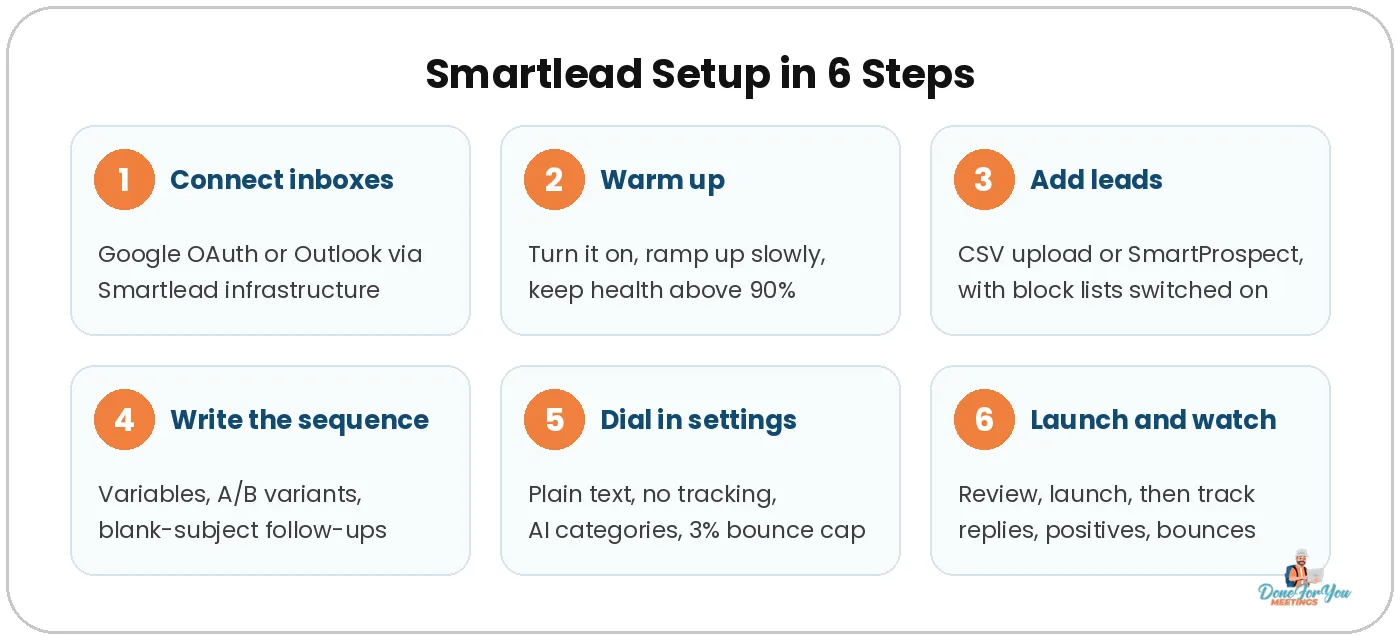
Step 1: Connect Your Email Inboxes to Smartlead
Go to Sending Accounts, click Add Account, choose Smartlead’s infrastructure, then connect through Google OAuth or Outlook.
First, you need inboxes. Buy them from Google or Outlook, from a provider like sending.ac (one of our favorites) or InboxKit, or as pre-warmed or fresh mailboxes inside Smartlead. We use a mix. Not sure where to buy? See our inbox provider comparison.
Private infrastructure vs Smartlead’s infrastructure
When you click Add Account, Smartlead asks how you want to connect:
- Your private infrastructure: harder to set up, and in our experience these accounts disconnect more often. In theory, it gives you a slight deliverability bump.
- Smartlead’s infrastructure: easier, and the accounts stay connected better. This is what we pick, and it’s perfectly fine for deliverability.
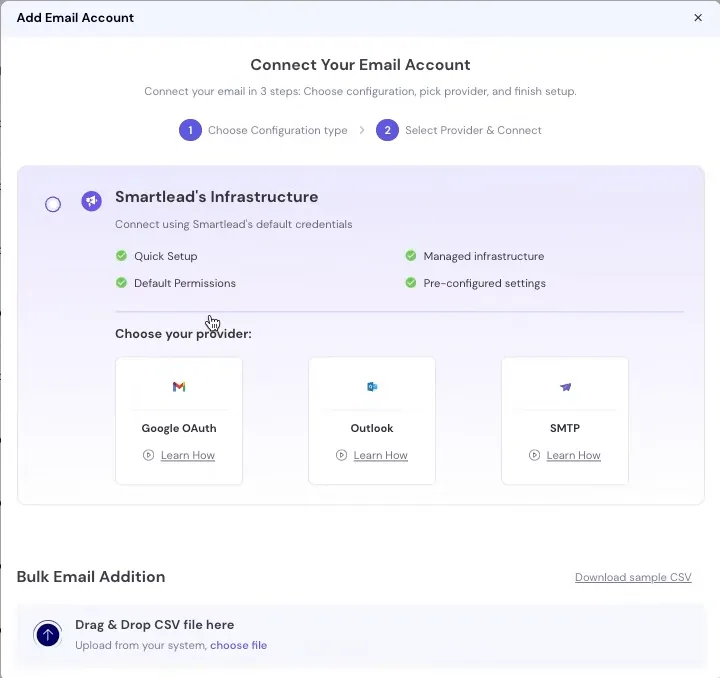
Google vs Outlook
For Google, connect your admin panel to Smartlead first. After that, each inbox is “click Connect Account, log in, done.” For Outlook, go to the Microsoft 365 Admin Center, open Active Users, pick the user and follow Smartlead’s steps.
💡 Pro tip: The exact connection steps change often, so follow Smartlead’s own help guide rather than a screenshot from six months ago.
Step 2: Warm Up Your Inboxes (and Keep Them Warm)
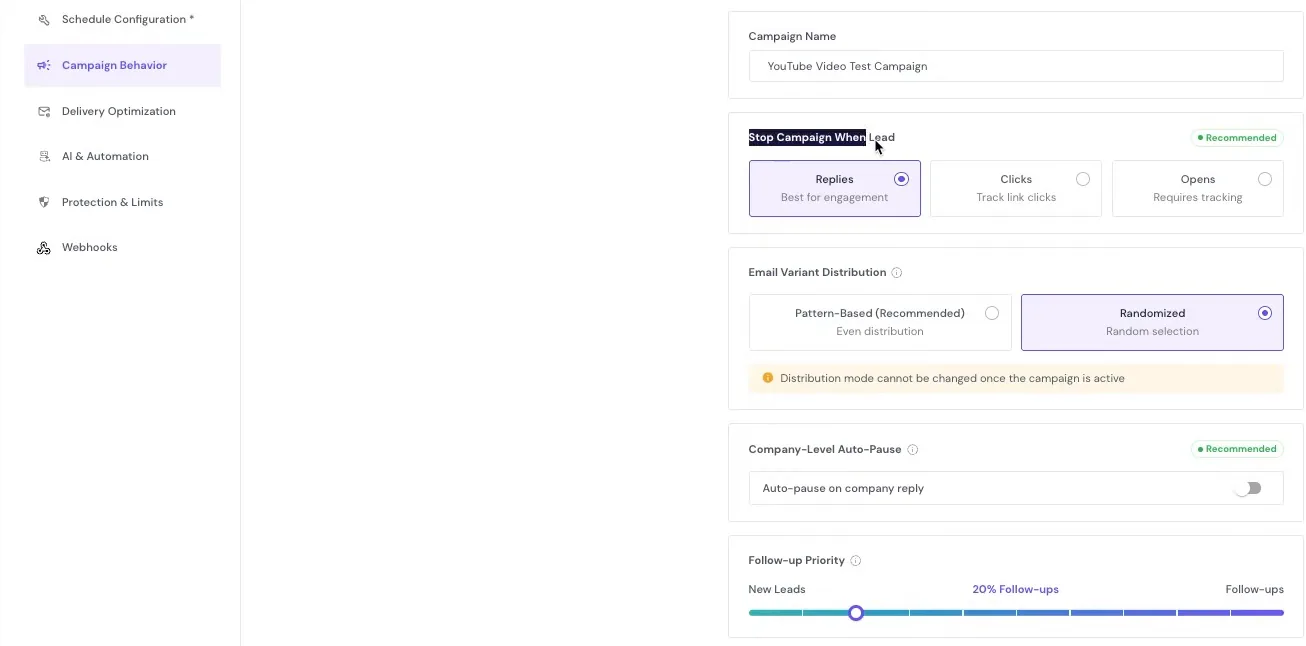
Turn warm-up on for every inbox, ramp up slowly, and never switch it off, even after your campaigns go live.
Think of warm-up like starting a new job. It would be pretty weird to walk in on day one and fire off 50 near-identical emails that hardly anyone answers. Cold email expects a 1 to 2% reply rate. In real life, you’d have to be really disliked to get a reply rate that low.
So we build a reputation with Google and Outlook before sending at volume, and we keep warm-up running alongside live campaigns to balance out the low reply rate. Smartlead’s warm-up pool does this: Smartlead’s accounts and other users’ (ours included) email each other to build sender reputation. Here’s the theory in our post on how to warm up cold emails.
Check warm-up health first
Click any inbox and the Overview tab shows how many warm-up emails landed in the inbox. We want this above 90%. Most of ours sit between 95% and 100%. If you’re under 90%, something’s probably wrong.
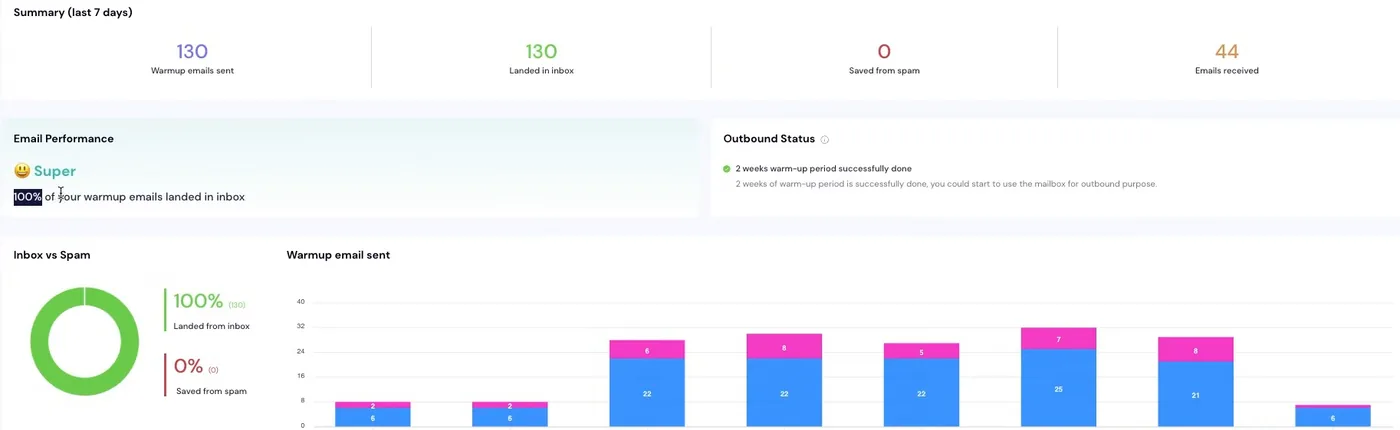
The General tab sets your max outreach messages per day (not counting warm-up) and a minimum gap between sends. Normal people don’t send an email every minute.
The warm-up settings that matter
Open the Warm Up tab and switch on Enable email warm-up. Then:
- Total warm-up emails per day: we always keep this under 40.
- Daily ramp-up: we normally use 3, so a new inbox adds three warm-up emails a day. Use it for brand-new accounts only, until you hit a healthy range. Otherwise, you’ll slowly creep toward 1,000 a day.
- Randomize: humans are random, so keep the range wide (say 5 to 20). Something like 5 to 6 looks robotic.
- Reply rate: 30 to 40%, randomized. If every warm-up email got a reply, that would look weird. (If every proposal we sent got a reply, we’d be retired.)
- Daily target for replies to inbound warm-up emails: keep it at the lowest setting.
- Auto-adjust warm-up sending ratio: leave it alone. Custom domain tracking link: ignore it, because we don’t track opens.
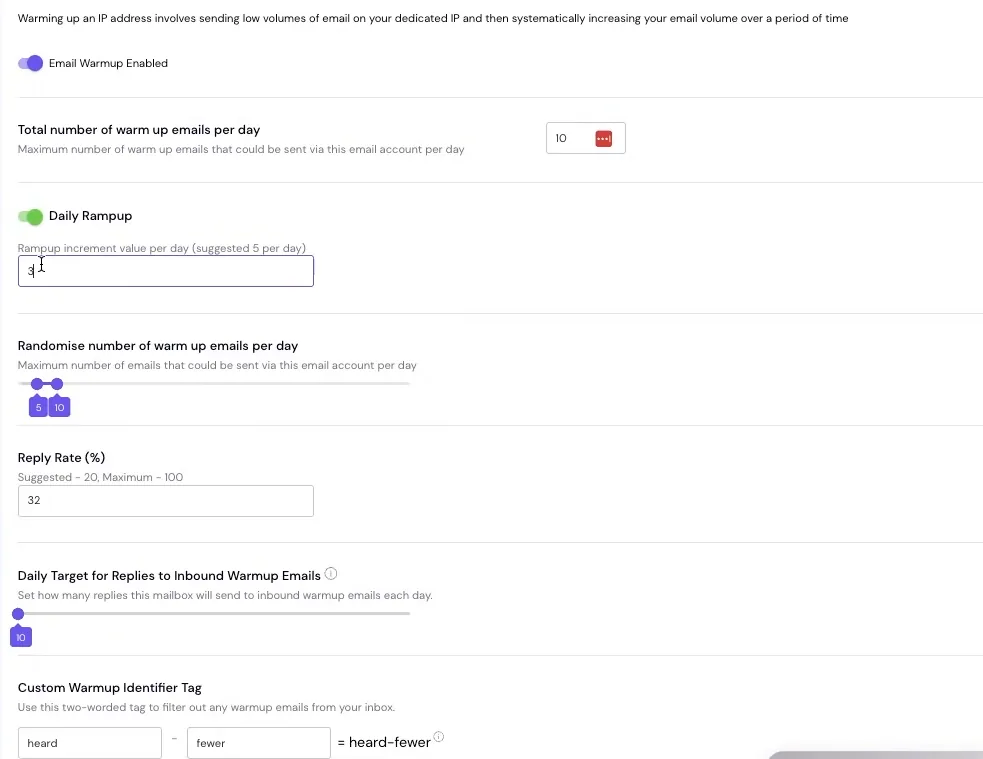
💡 Pro tip: Don’t turn off weekend warm-up. Real people send some email on weekends, just less. Every Friday, we cut weekend warm-up to roughly half the weekday volume (20 on weekdays becomes about 7 to 10). Also add a two-word custom warm-up identifier tag, so you can filter warm-up emails into their own folder and keep your real inbox clean.
Bulk update instead of clicking 100 inboxes
Select the accounts, click Bulk Update, enter your settings, and they apply to all of them. Warm-up settings change a lot, so our CEO keeps his current ones in a sheet linked under the video. Stuck? Ask Smartlead’s support. A real person answers.
Step 3: Create Your Campaign and Add Leads
Click Create Campaign, then add leads by CSV upload, from a saved list, or straight from SmartProspect, with the block lists switched on.
We’re using Smartlead’s new campaign builder. Name your campaign, click Continue, then Add Leads: import a saved list, upload a CSV, or use SmartProspect.
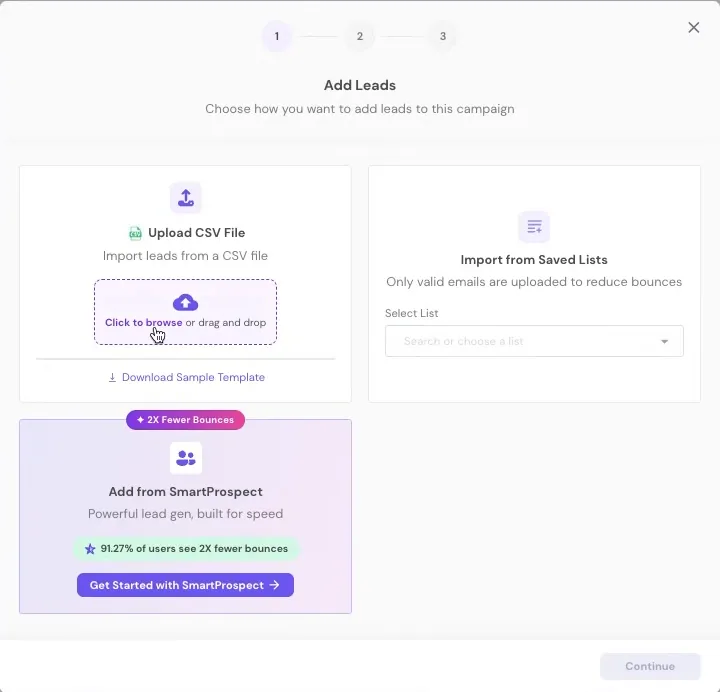
Option A: Build a list with SmartProspect
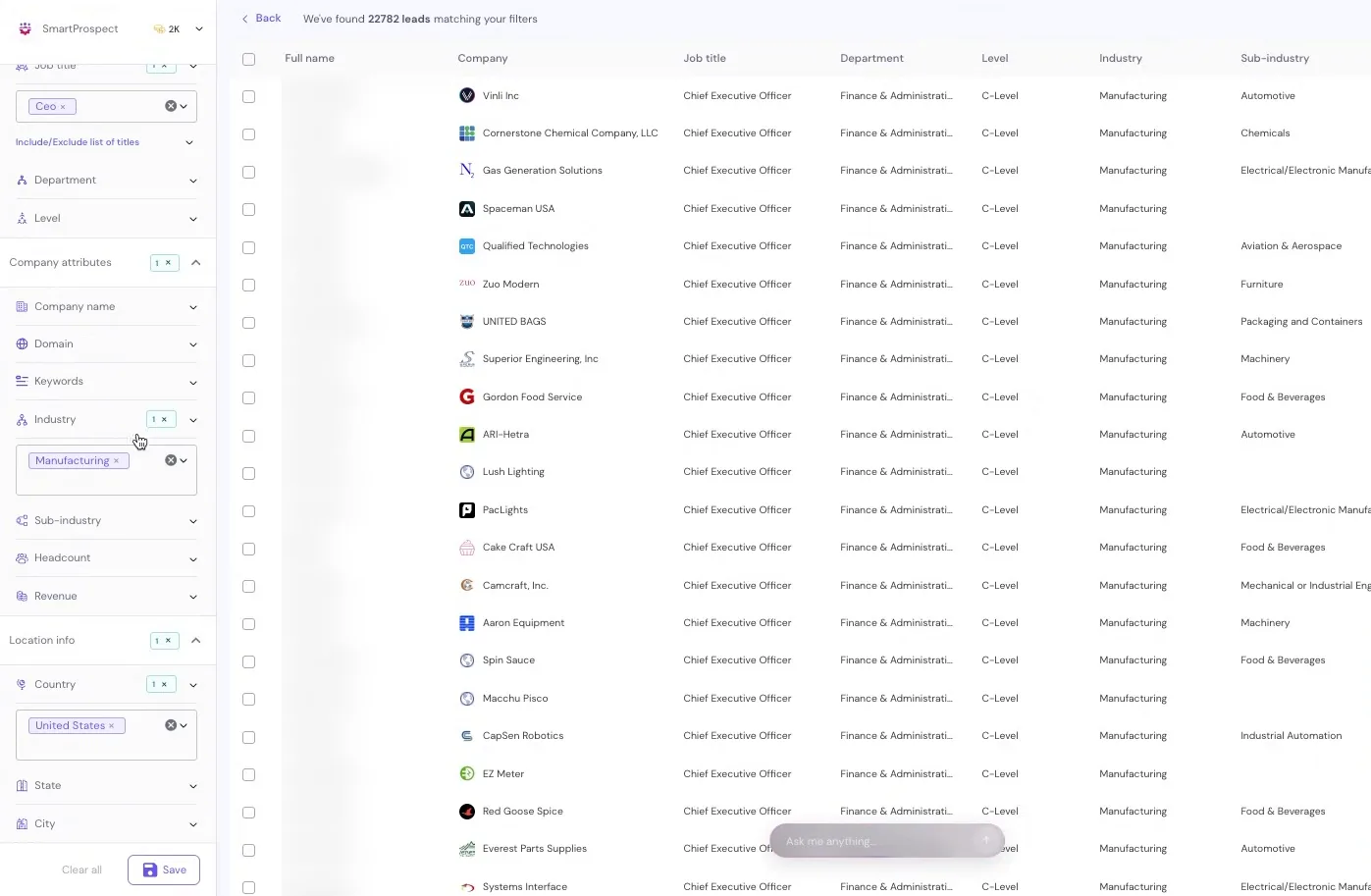
SmartProspect is Smartlead’s built-in lead finder. In the video, filtering for manufacturing CEOs in the United States returned 22,782 leads. You can narrow it with sub-industry, headcount (say 250 to 1,000 employees), state, city, revenue and more, then add the leads to your campaign.
Option B: Upload a CSV (what we usually do)
Most of the time, we build lists in a data tool like GetLeads, Apollo or Seamless and upload a CSV. (Here’s our Seamless.AI tutorial and our GetLeads review if you’re picking one.) Download Smartlead’s sample template first so your columns match: email, first name, last name, company name, phone, website, LinkedIn profile and location.
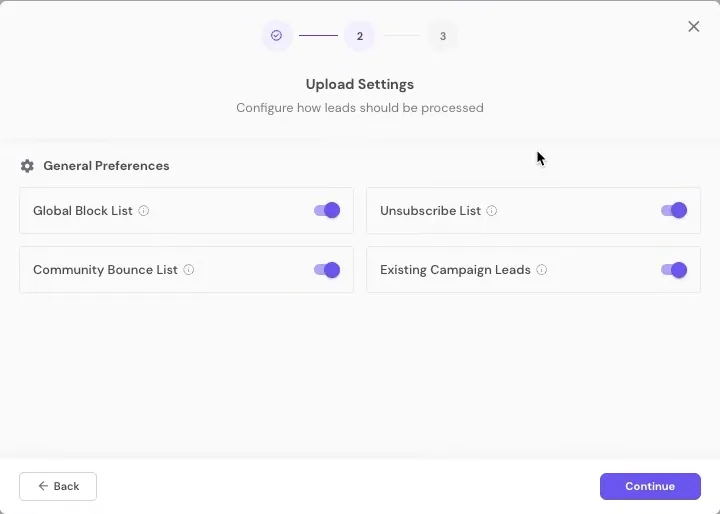
When you upload, switch on all four of these:
- Global block list: people you’ve blocked before.
- Unsubscribe list: people who unsubscribed from your other campaigns.
- Community bounce list: emails that bounced for any Smartlead user. This one is a fantastic feature, because bounces are terrible for deliverability.
- Existing campaign leads: people already in another campaign.
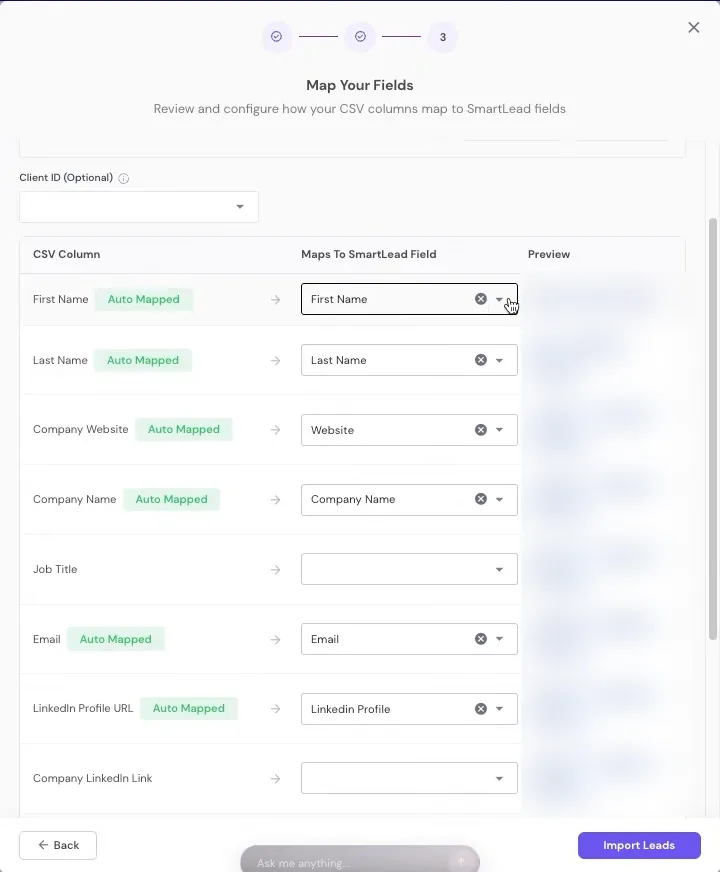
Map your fields
Smartlead’s auto-mapping is almost always right, but check anyway. Set columns you don’t have to Ignore field, and map extras like a personalized line to a custom field (we do that all the time). Smartlead also flags duplicates.
Smartlead can verify emails too, if you have credits. Our list was already verified, so we skipped it. (New to verification? Read how to stop bounces with email validation.)
Step 4: Write Your Email Sequence
Add your first email, insert variables, preview and send a test, add A/B variants, then add follow-ups with a blank subject line.
Open the Sequence tab and create your first step. Write your subject line and body, then highlight the text you want to personalize and pick a variable from Insert Variables. “Hi first name” now becomes “Hi Michael”, “Hi Daniel”, “Hi Beth” and so on.
Preview and send a test (seriously)
Click Preview Template, choose a lead, check the variables, then send yourself a test. Few things are more embarrassing than replies asking, “What did you just send me?”
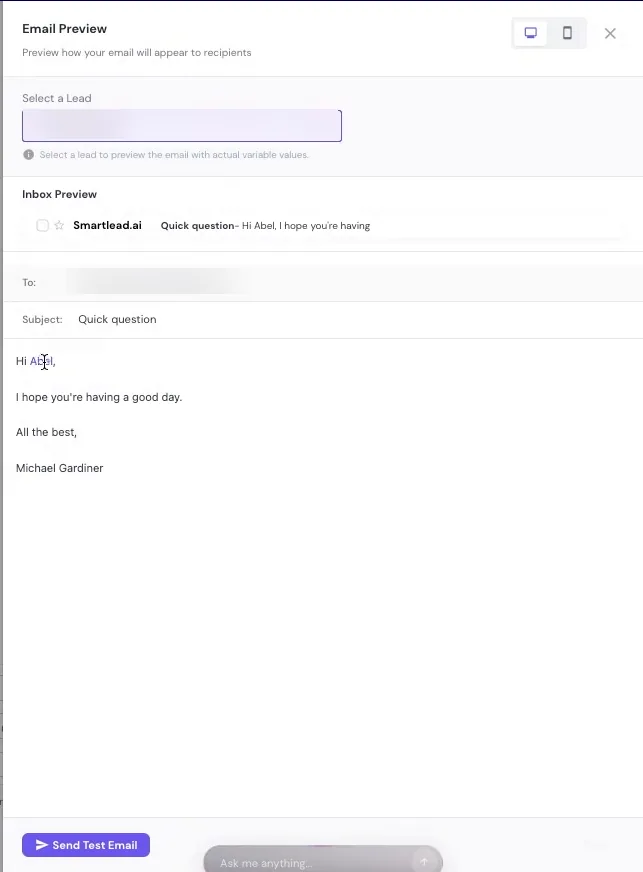
💡 Pro tip: Read every email in mobile view. Most prospects will read it on their phone, and a chunky wall of text is painfully obvious on a small screen.
A/B test and add follow-ups
Click Add A/B Variant to split test. Some of our campaigns have up to 10 versions of email one. Subject lines stay similar (think “quick question” vs a version with the first name in it).
For follow-ups, click Add Sequence, then Email. Leave the subject line blank, so it lands as a reply in the same thread. We usually wait 3 to 5 days between emails. Then hit Save. (Don’t skip that.) Need help with the words themselves? Here’s how we’d transform your cold emails.
Step 5: Dial In Your Campaign Settings
Choose your sending accounts, then work through each settings tab: schedule, behavior, deliverability, AI and protection.
In Email Accounts, add the inboxes for this campaign (different campaigns can use different accounts). Then open Settings.
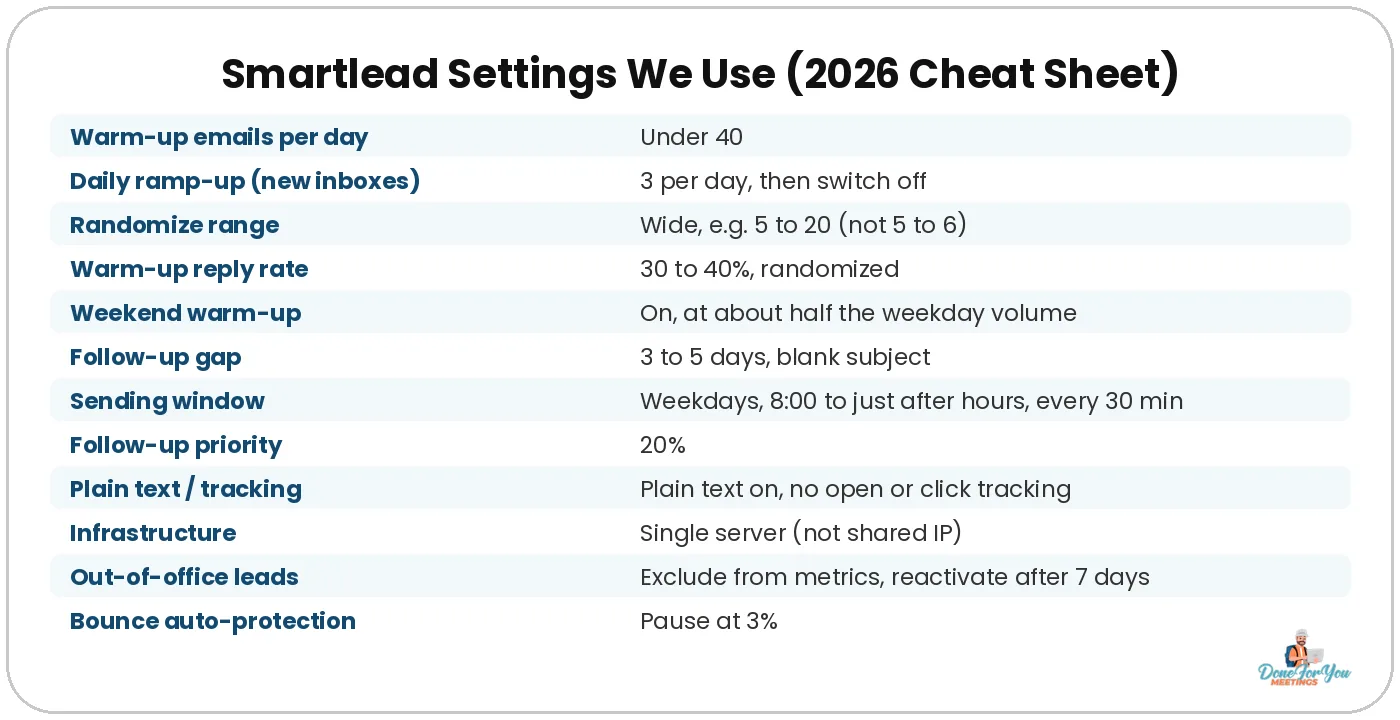
Schedule
- Time zone: set it to suit your send (we’re on New York time).
- Start date: leave it blank if the campaign should start the moment you launch.
- Active days: Monday to Friday. We’ve tested weekends and normally don’t send then.
- Sending window: about 8:00 until a little after business hours, sending every 30 minutes.
- New leads per day: we set a huge number to effectively bypass it, because we control volume per inbox at the account level, not per campaign.
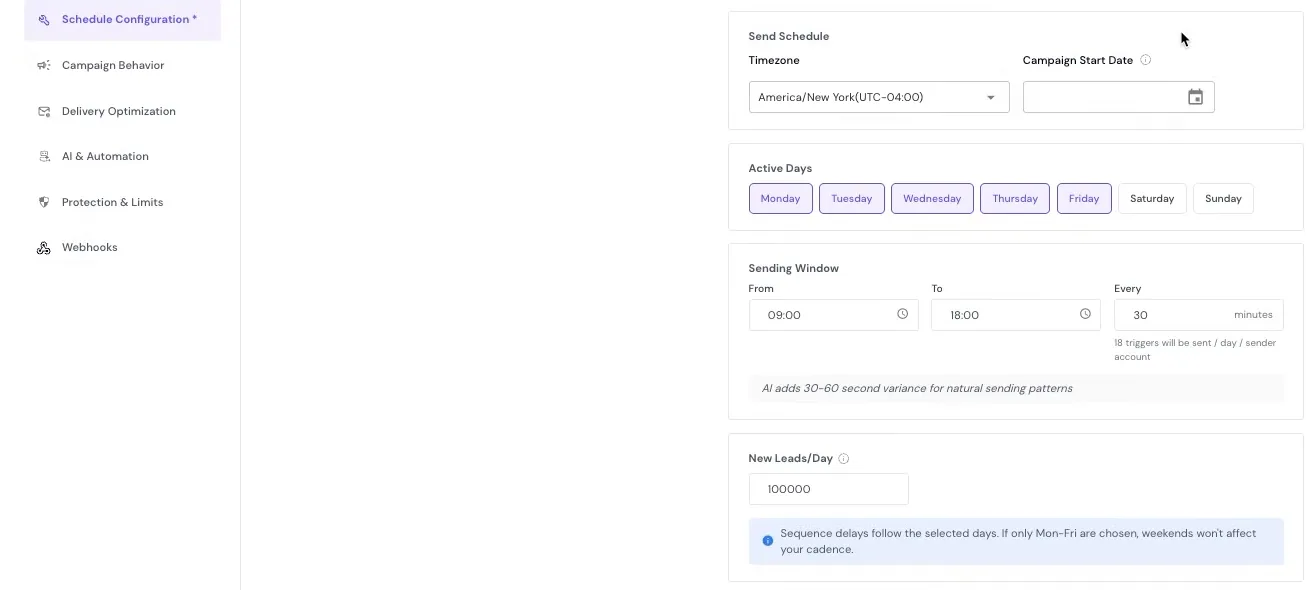
Campaign behavior
- Stop campaign when lead: Replies. (Not clicks or opens, because we don’t track them.)
- Email variant distribution: Randomized. It keeps things more random, especially with spintax.
- Company-level auto-pause: we leave this off. Sometimes one person at a company says no and the next one says yes.
- Follow-up priority: 20%. That’s the balance of new leads vs follow-ups that’s worked best for our campaigns.
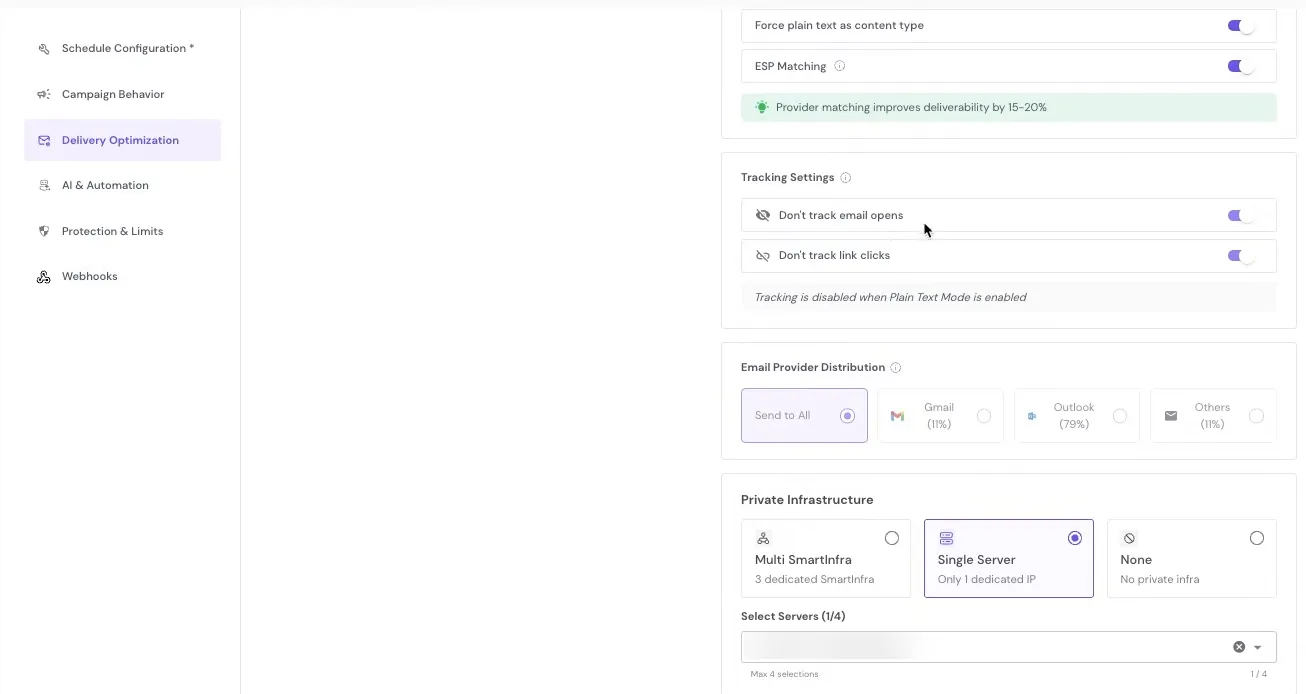
Deliverability optimization
This tab is quite important:
- Plain text on, plus force plain text as content type. No HTML emails.
- ESP matching on: Google inboxes send to Google, Outlook to Outlook.
- Never track opens or link clicks. It sounds counterintuitive, but tracking will send you to spam.
- Infrastructure: pick Single Server, a free dedicated IP where you’re in charge of your own deliverability. On a shared IP, somebody else can drag you down. (Multi-server means buying extra servers.)
Want the bigger picture on staying out of spam? Start with our cold email deliverability guide.
AI lead categorization (our favorite new feature)
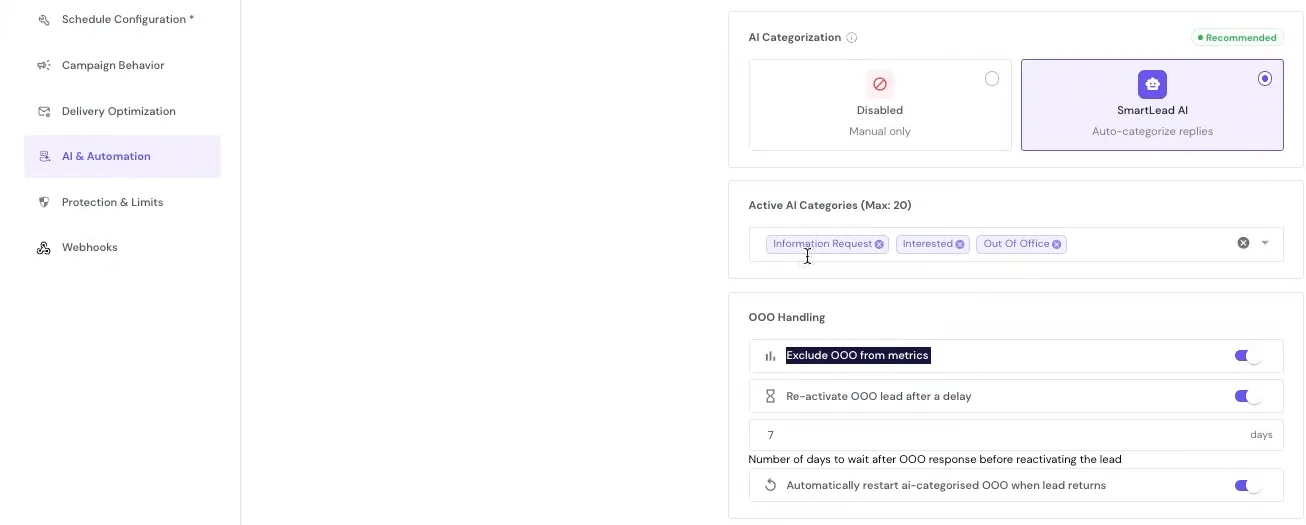
Under AI & Automation, turn on Smartlead AI to categorize replies. Pick the tags you want, such as Interested, Information Request and Out of Office. The one we always switch on is Out of Office, because it unlocks these options:
- Exclude OOO from metrics: always on, so auto-replies don’t give you a false sense of hope about your reply rate.
- Reactivate OOO leads after a delay: we use 7 days.
- Automatically restart AI-categorized OOO when the lead returns: if the auto-reply says “back August 27th,” Smartlead waits until then. If it gives no date, the 7-day default kicks in.
It’s a small thing, but it makes a huge difference, especially in summer when everyone’s on holiday.
Protection and limits
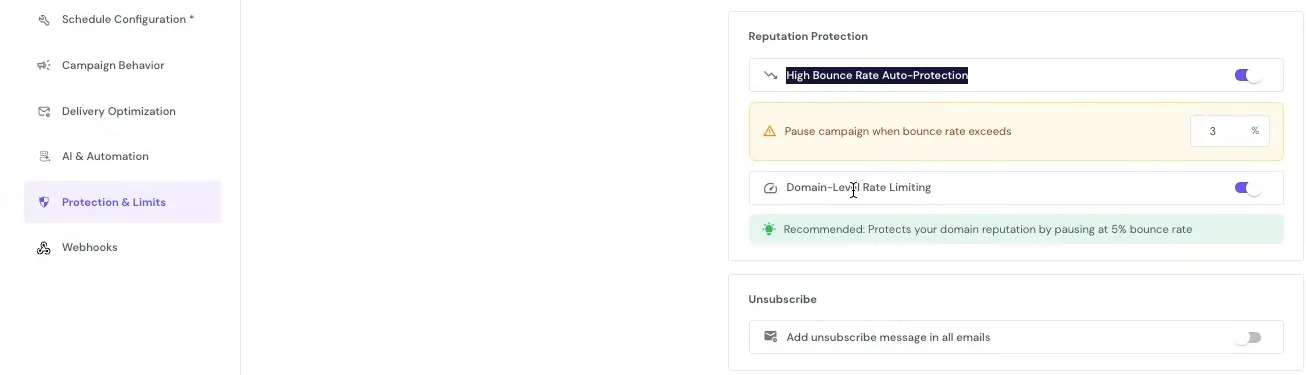
- High bounce rate auto-protection: pauses the campaign if bounces pass your limit. We normally set 3%.
- Domain-level rate limiting: always on.
- Unsubscribe message in all emails: we leave this off and write a text-based opt-out into the copy itself.
Want us to set up Smartlead for you?
We set up the inboxes, warm-up, lists and campaigns, and book the calls. We’ve worked with 500+ companies and have been doing cold email since 2014.
Step 6: Launch and Track Your Results
Click Review and Launch, check the example emails, launch, then watch replies, positive replies and bounces from the Campaigns page.
Hit Review and Launch, check the example emails, and click Launch Campaign (or save as a draft). Your numbers then live on the Campaigns page.
💡 Pro tip: Opens and clicks show “NA” here, and that’s on purpose. Judge your campaigns on replies, positive replies and bounce rate, not on vanity metrics that can hurt deliverability.
Answers To Questions You Might Have
Is Smartlead good for cold email in 2026?
Yes. We run client campaigns on it. It handles inboxes, warm-up, list building, sequences, deliverability settings and AI reply categorization in one place.
How many warm-up emails per day should I send in Smartlead?
We keep total warm-up emails under 40 per day, use a daily ramp-up of 3 for brand-new inboxes, set a wide randomized range, and aim for a 30 to 40% warm-up reply rate. Keep your warm-up inbox rate above 90%.
Should I track opens and clicks in Smartlead?
No. We never track opens or link clicks, and we send in plain text. Tracking can push your emails into spam, so judge campaigns on replies and positive replies instead.
Should I use Smartlead’s infrastructure or my own?
For most people, Smartlead’s infrastructure: it’s easier and accounts stay connected better. Private infrastructure may give a slight deliverability boost but disconnects more often.
What bounce rate should pause a Smartlead campaign?
We set high bounce rate auto-protection to 3%. Turning on the community bounce list when you upload leads, and verifying your list first, helps keep you well below that.
Wrapping Up
That’s how we set up Smartlead in 2026: connect your inboxes, warm them up properly, build or upload a clean list, write a sequence you’ve actually previewed, and lock in settings that put deliverability first. Get those right and Smartlead does the heavy lifting.
Still comparing tools? See our list of the best cold email sending tools. Ready to start? You can sign up for Smartlead here.
Hungry for more tips on conquering the B2B world? Keep your eyes glued to our CEO’s YouTube channel!
Want consistent, qualified meetings without the guesswork? We’ve sent 5,000,000+ cold emails and booked 5,000+ calls for 500+ companies since 2014.
P.S. If you’re interested in growing your business with outreach, you can join multiple agency owners, coaches, and freelancers in our outreach community to get expert tips, templates, and much more!
Cheers to campaigns that land in the inbox! 🥂

Author:
Michael Gardiner
Michael is a cold email expert who has been doing cold email since 2014. He has worked with 500+ B2B companies ranging from startups to Fortune 500s, sent over 5,000,000 emails, generated 50,000+ replies and booked 5,000+ calls, driving multi-7-figure revenue from email. Outside of work, you will find him traveling around the world with a goal to set foot in every country.